Introducing Tapiri: A Text Expander for Mac
 Emmanuel Raymond4 mins read
At Okike Labs, we like building products around a specific part of someone’s day. Nuxt SaaS Kit grew around the setup work developers repeat. Letterly gives people a way to send a little of the present into the future.
Our latest product, Tapiri, is a text expander for Mac. It saves the words you use often and lets you bring them back with a shortcut.
What interested us was how much room there is to make an ordinary task easier.
Why we built Tapiri
Typing your email address. Finding your booking link. Answering a question about your product. Sending a client the steps to get started. Each one takes a little time, and then you do it again tomorrow.
You can keep a note with your usual replies. That helps, but you still have to leave what you are doing, find the note, copy the right bit, and return to the conversation.
We wanted to make that process shorter. Save the words once, then have them available where you are already writing.
Text expansion is an established idea, and its usefulness is easy to understand once you try it. For us, the interesting work was in making a version that feels comfortable to use every day: a native Mac app, a library you control, and a straightforward way to get your words onto the page.
What Tapiri does
You save a piece of text as a snippet and give it a short abbreviation. When you type that abbreviation in a compatible app, Tapiri replaces it with the saved text.
For example, you could save your usual project introduction under intro:
Thanks for getting in touch! Tell me a little about your project, what you need help with, and when you would like to get started.
A few characters bring back the whole reply. You can edit it before sending, just as you would any other text.
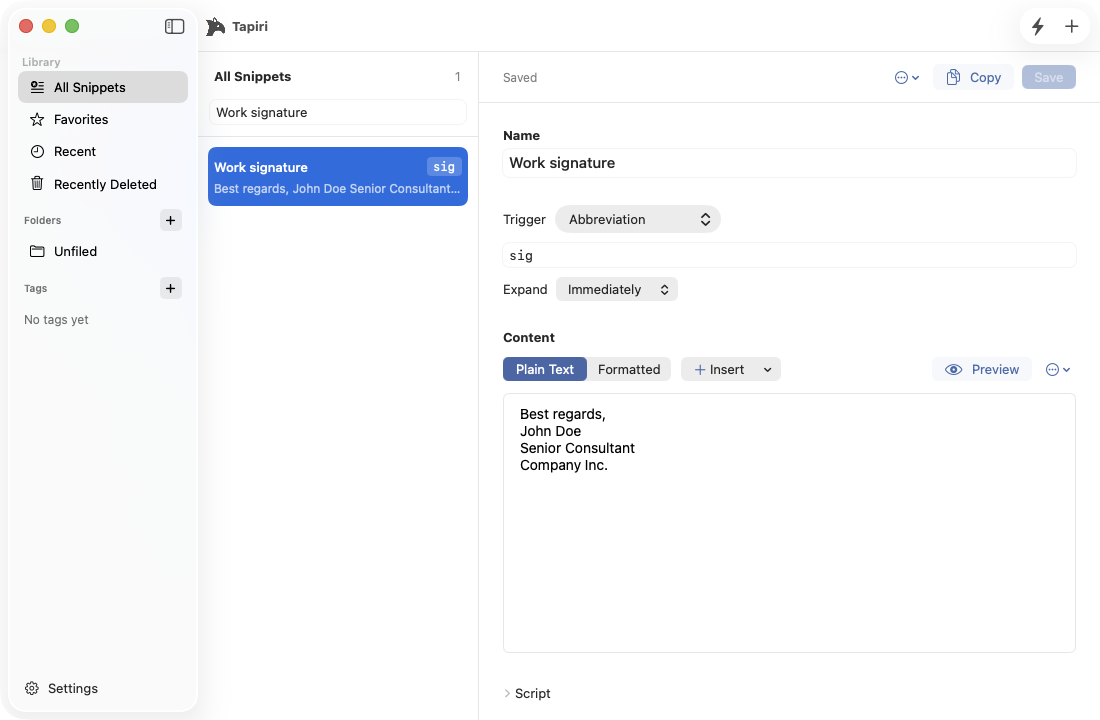
A saved email signature in Tapiri, ready to insert by typing its abbreviation.
If you forget an abbreviation, Quick Search lets you find the snippet by name and insert it. You can organize your library with folders, tags, and favorites as it grows.
Some replies need more than a fixed block of text. A name changes. A date changes. The instructions are mostly the same, but one detail depends on who you are talking to. Tapiri supports fill-in fields so you can supply those details when you use a template. There is also support for formatted text, images, dynamic dates, calculations, and scripts for more involved workflows.
You can start with a single reply you use often. That is enough to get a feel for it.
The decisions behind it
Building a tool that sits alongside your everyday writing comes with a responsibility to be careful with it.
Tapiri stores your snippets locally on your Mac. There is no required app account, and your snippet library is not uploaded to our servers. Ordinary typing is not logged. Everyday text expansion works offline, including during the trial. Internet access is needed for license activation and checking for updates.
We also kept access to your saved text separate from access to automatic expansion. If your trial ends, you can still view, edit, manually copy, and export your snippets. The words you put into the app should remain available to you.
There are local backups, import and export tools, and a Recently Deleted section for recovering snippets. These are quiet features, but they matter when you have spent time building a library you rely on.
The same care applies to inserting text. Different apps handle text fields differently, and making an expansion behave properly involves more than getting the words onto the screen. Line breaks, surrounding text, and the clipboard all need attention. Tapiri supports expansion in compatible fields, with controls to pause it or exclude particular apps.
That is a lot of work behind a small interaction. Ideally, you experience it as typing a shortcut and carrying on with your day.
Try Tapiri
Tapiri is available for Apple Silicon Macs running macOS 13 or later. There is a seven-day trial with no credit card or app account required, followed by a one-time purchase option.
You can download Tapiri and start with the reply, address, or link you are most tired of typing. Save it, give it a shortcut, and use it the next time you need it.
If you try it, tell us how it goes. I would especially like to hear what you saved first.